Showing posts with label VS2005. Show all posts

Monday, February 11, 2008

Return an exit code from a C# Windows Application

To exit an Windows Forms Application, we have the option to use Application.Exit() or the System.Environment.Exit().

The difference is discussed here (http://geekswithblogs.net/mtreadwell/archive/2004/06/06/6123.aspx) and the suggestion was made to use System.Environment.Exit() for console applications since it can accept an exit code which will be returned to the Operating System.

But for Windows applications, what should we do ?

I have tried to modify the Main function definition so it will have a return value, a lesson learned from C/C++ old days, then add a property to my main form to indicate if my application would report a success or failure report

And so, my Main function will look like this :


        [STAThread]
       
static int Main(string[] arguments)
        {

            Application.EnableVisualStyles()
;
           
Application.SetCompatibleTextRenderingDefault(false);

           
MainForm mainForm = new MainForm();
            Application.Run(mainForm)
;

           
//return exit code
            // 0  : no problem
            // -1 : error occured

           
int exitCode = mainForm.Succeeded == true ? 0 : -1;
            return
exitCode;


}


This approach can be extended to report different exit codes for different scenarios (think about MSBuild or NAnt exit codes).

Friday, February 08, 2008

[Architecting Desktop Applications with 2.0] MSDN Webcast series

MSDN Webcast: Architecting Desktop Applications with 2.0 (Part 01 of 15): Smart Clients and N-tier Design (Level 300)

MSDN Webcast: Architecting Desktop Applications with 2.0 (Part 02 of 15): Design Patterns for GUI Applications (Level 300)

MSDN Webcast: Architecting Desktop Applications with 2.0 (Part 03 of 15): Creating Dynamic and Configurable Applications (Level 300)

MSDN Webcast: Architecting Desktop Applications with 2.0 (Part 04 of 15): Architecting a Secure Desktop Application (Level 300)

MSDN Webcast: Architecting Desktop Applications with 2.0 (Part 05 of 15): Designing the Business Tier (Level 300)

MSDN Webcast: Architecting Desktop Applications with 2.0 (Part 06 of 15): Designing the Data Access Tier (Level 300)

MSDN Webcast: Architecting Desktop Applications with 2.0 (Part 07 of 15): Best Practices for Developing N-Tier Applications (Level 300)

MSDN Webcast: Architecting Desktop Applications with 2.0 (Part 08 of 15): Turning Tiers into Components (Level 300)

MSDN Webcast: Architecting Desktop Applications with 2.0 (Part 09 of 15): Build, Build, Build, Test, Test, Test (Level 300)

MSDN Webcast: Architecting Desktop Applications with 2.0 (Part 10 of 15): Multithreading for Performance and Responsiveness (Level 300) (Level 300)

MSDN Webcast: Architecting Desktop Applications with 2.0 (Part 11 of 15): Designing Distributed Applications Around Remote Access (Level 300) (Level 300)

MSDN Webcast: Architecting Desktop Applications with 2.0 (Part 12 of 15): Designing Distributed Applications Around Web Services (Level 300) (Level 300)

MSDN Webcast: Architecting Desktop Applications with 2.0 (Part 13 of 15): Securing a Distributed Application (Level 300) (Level 300)

MSDN Webcast: Architecting Desktop Applications with 2.0 (Part 14 of 15): ClickOnce Deployment (Level 300) (Level 300)

MSDN Webcast: Architecting Desktop Applications with 2.0 (Part 15 of 15): Learning from Agile Development (Level 300) (Level 300)

Tuesday, October 30, 2007

Monday, September 18, 2006

Organize your Settings

The trick that might not been famous, is that we can add multiple settings to a single VS2005 project; this will make organizing settings into groups more useful from a programming point of view or an administration point of view.

Let's say that we have a project with more than 30 entries in its Settings designer, managing this huge number of settings might lead to some errors.

Why not split those settings into groups, for example AdminSettings and OperationSettings.

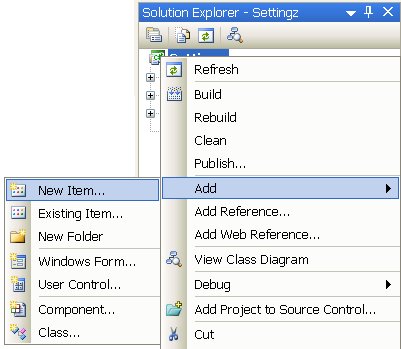
By default a VS2005 project ca have one settings class auto-generated by the settings designer; this class will get the name Settings. We can get rid of this class or leave it and add one or two other by Selecting New Item from the Add menu.


Then we can select the Settings File and name it what ever we want.

We can then use drag and drop to move the newly added settings to the Properties folder


Doing this, we will maintain all settings in the Properties folder,hence to get the name space Properties for all our settings.